Phone by Google
Screenshots
The Phone by Google app is the official calling solution for Android devices. It replaces older, cluttered dialers with a clean and smart interface. This app focuses on simplicity and security. You will find it pre-installed on many Pixel phones. Moreover, anyone with an Android device can download it from the app store. The main goal is clear: help you make and receive calls without distractions or risks.
Therefore, this app does more than just dial numbers. It actively protects you from spam and fraud calls. For instance, it screens unknown numbers in real time. Then, it warns you before you answer a risky call. As a result, you save time and avoid potential scams. The app also integrates seamlessly with your contacts. So, you always see caller names and recent conversation history.
How to Download and Install Phone by Google APK for Android
The Phone by Google app offers a clean and reliable way to manage your calls. While most Pixel devices come with this app pre-installed, many other Android users want to experience its smart features. If you cannot find it in your local app store, downloading the APK file is a great alternative.
This guide explains how to safely download and install the Phone by Google APK on your Android device.
Why Choose Phone by Google?
Many users prefer this dialer because it focuses on speed and security. It helps you avoid unwanted interruptions and organizes your contacts efficiently. Key features include:
- Spam Protection: The app identifies suspicious callers and warns you before you pick up.
- Caller ID: You can see which business is calling even if you do not have their number saved.
- Simple Interface: The design stays minimalist and easy to navigate.
- Search Integration: You can look up local places and businesses directly from the dialer.
Preparing Your Device for Installation
Android devices usually block apps from unknown sources to protect your security. You must change a specific setting before you install an APK file.
Enable Unknown Sources
- Open the Settings menu on your phone.
- Navigate to Apps or Security.
- Look for the option labeled Special App Access.
- Select Install Unknown Apps.
- Choose the web browser you plan to use for the download.
- Toggle the switch to Allow from this source.
Once you complete these steps, your phone is ready to handle the installation.
How to Download the Phone by Google APK
You need to find a reputable website that hosts APK files. Look for versions that match your Android operating system version.
Step-by-Step Download Process
- Open your mobile browser.
- Visit Filetomob.com.
- Search for “Phone by Google APK Download”.
- Select the app page.
- Click the Download Phone by Google APK button.
- Wait for the file to finish saving to your “Downloads” folder.
Installing the App
After the download finishes, the installation process is straightforward. Follow these instructions to get the app running:
- Open your File Manager app.
- Go to the Downloads folder.
- Tap on the Phone by Google APK file.
- A prompt will appear asking if you want to install the application.
- Tap Install and wait for the progress bar to finish.
- Select Open once the process completes.
Setting the App as Your Default Dialer
To use the app effectively, you must set it as your primary calling tool. If you skip this step, your phone will continue to use the old system dialer.
- Launch the newly installed Phone app.
- Look for a prompt at the top of the screen asking to set it as default.
- Tap Set as Default.
- Select Phone (the Google version) from the list.
- Confirm your choice.
Phone by Google: Setup & Customization
Setting up your smartphone should feel like a personal win. The Phone by Google app makes managing calls and contacts simple. This guide helps you master the setup and customization process. You will learn how to secure your privacy and tailor the interface to your style.
Grant Essential Permissions
The app needs specific access to work correctly. You must grant permissions during the initial launch.
- Phone and Contacts: This allows the app to place calls and show your contact list.
- SMS Access: The app uses this to send quick text replies when you cannot answer a call.
- Overlay for Call Screen: This permission lets the app display information over other apps. It is vital for features like the Call Screen, which identifies callers before you pick up.
Enable Powerful Spam Filtering
Stop unwanted callers from interrupting your day. Google uses a massive database to identify telemarketers and scammers.
- Open the Phone app.
- Tap the three dots in the corner to find Settings.
- Select Caller ID & spam.
- Toggle on See caller and spam ID.
- Turn on Filter spam calls to block these calls automatically.
This feature ensures your phone only rings when it matters. It creates a quieter, more focused experience.
Turn on Nearby Places Search
You can find local businesses directly from your dialer. This feature saves time by removing the need to switch apps.
Go to the app settings and find Nearby places. Enable this to search for restaurants, shops, or services using the search bar in the dialer. The app uses your location to provide accurate, local results.
Manage Voicemail and Transcriptions
Stay on top of your messages without listening to long recordings. Customizing your voicemail makes your profile professional.
- Set a Greeting: Navigate to the voicemail section in settings. Record a unique greeting that represents you.
- Transcription Language: If you speak multiple languages, set your preferred transcription language. The app will convert voice messages into text. You can read your messages in a meeting or a quiet room.
Adjust Sounds and Visuals
Customization makes your device feel unique. Small changes to how your phone alerts you can improve your daily routine.
- Vibration Patterns: Choose specific vibrations for different types of alerts. This helps you identify a call without looking at the screen.
- Audio Settings: Pick a ringtone that fits your personality. Adjust the volume for various notifications to keep them subtle or loud.
- Dark Mode: Protect your eyes and save battery life. Enable dark mode in the display settings to change the interface to a sleek, dark theme.
By following these steps, you create a seamless calling experience. Your Android device becomes more than just a tool. It becomes a customized assistant that works specifically for you.
Phone by Google: Key Features
The Phone by Google app transforms how you handle daily calls on Android. It moves beyond a simple dialer to become a smart assistant. This app helps you avoid interruptions, find local businesses, and manage voicemail with ease.
Below are the key features that make this app essential for modern smartphone users.
Top-Tier Spam and Scam Protection
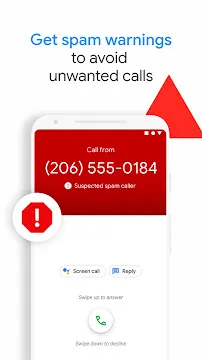
Unwanted calls are a major distraction for everyone. Fortunately, Google uses a massive, real-time database to keep your phone quiet. When a call comes in, the app checks the number against millions of reported spammers.
- Real-Time Warnings: You see a clear “Suspected spam” alert on your screen before you answer.
- Automatic Blocking: You can set the app to block these callers entirely.
- Community Reports: Every time you report a scammer, you help protect other users.
This system acts as a digital shield. It ensures that only the calls you actually want reach your ears.
Smart Caller ID and Nearby Places
You no longer need to wonder who is calling. Google’s extensive database identifies businesses and services even if they are not in your contacts. This feature adds confidence to every conversation.
- Business Search: You can search for a local shop or restaurant directly inside the dialer.
- Contextual Info: The app shows the name and category of the business calling you.
- Fast Lookups: You do not have to switch apps to find a phone number for a nearby pharmacy or doctor.
Advanced Call Screening
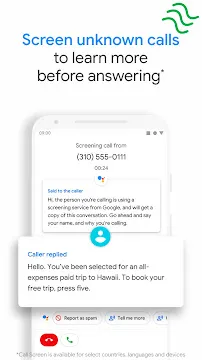
The Call Screen feature is a standout for Pixel owners and select Android users. It uses Google Assistant to answer unknown numbers for you.
As the caller speaks, you see a live transcription on your screen. You can then choose to pick up or ask for more details. This tool effectively ends the era of annoying robocalls.
Visual Voicemail with Transcriptions
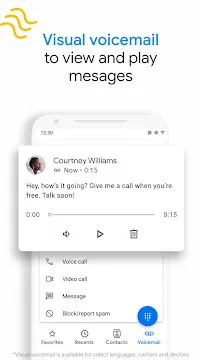
Listening to long voicemails takes too much time. Visual Voicemail changes this by organizing your messages in a list.
- Easy Playback: You can tap any message to play it immediately.
- Read Instead of Listen: The app transcribes the audio into text.
- Quick Management: You can delete or save messages with a single tap.
Hold for Me and Direct My Call
These features save you from the frustration of automated phone systems.
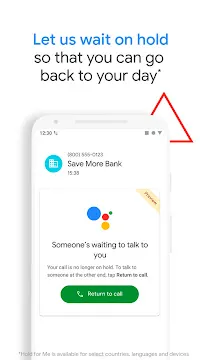
- Hold for Me: If a business puts you on hold, Google Assistant waits for you. Your phone notifies you when a human representative is finally on the line.
- Direct My Call: This feature transcribes automated menus in real-time. Instead of memorizing which number to press, you simply tap the correct option on your screen.
Modern UI with Material You
The app looks as good as it performs. Material You allows the interface to adapt to your personal style. The colors of the buttons and backgrounds change to match your phone’s wallpaper.
Additionally, the app uses subtle haptic feedback. These tiny vibrations make every tap feel responsive and smooth. The design is clean, lightweight, and focused on helping you connect faster.
Phone by Google: Pro Tips for Power Users
The Phone by Google app is more than a simple dialer. While most people use it just to type a number and hit call, it actually hides several advanced features. If you want to master your Android device, you need to look beyond the basic interface.
Here is how you can transform your calling experience with these pro tips for power users.
Identify Every Caller with Verified Calls
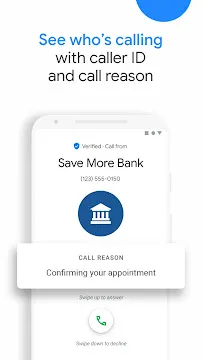
Unwanted spam and anonymous calls waste your time. Google solves this with Verified Calls. This feature helps you identify legitimate businesses before you even pick up the phone.
When a verified business calls you, the app displays:
- The official name of the company.
- The business logo.
- The specific reason for the call.
This transparency ensures you never miss an important appointment or a delivery update. It also gives you peace of mind when ignoring suspicious numbers. You can activate this in the app settings under the “Caller ID & Spam” menu.
Master Quick Gestures: Flip to Silence
Interruptions often happen at the worst moments. Whether you are in a meeting or at dinner, a loud ringtone causes stress. You do not need to fumble for the volume buttons to stop the noise.
Instead, use the Flip to Shhh gesture. When an incoming call starts ringing, simply turn your phone face down on a flat surface. The app automatically silences the ringer and activates “Do Not Disturb” mode. This physical action is intuitive and much faster than navigating screen menus during an awkward moment.
Access Your Dialer Instantly
Speed is essential when you need to make a quick call. Most users unlock their phone, find the app icon, and then open the keypad. Power users take a shortcut.
You can set your Android device to open the dialer by double-tapping the power button. While this shortcut often defaults to the camera, you can customize it in your system gestures. This allows you to reach your contacts or the keypad in less than a second, even if your screen is off.
Personalized Vibrate Patterns
Sometimes, you cannot look at your screen to see who is calling. You might be driving or keep your phone in your pocket during work. You can still identify the caller by using Custom Vibrate Patterns.
The Phone by Google app allows you to assign specific vibration rhythms to individual contacts.
- Open a specific contact.
- Tap the menu options.
- Select the ringtone or vibration settings.
A long, steady pulse might represent your boss, while three short bursts could signal a family member. This tactile feedback lets you “see” who is calling without using your eyes.
Secure Your Messages: Manual Voicemail Backup
Voicemails often contain sentimental messages or vital business information. While the app stores them locally, losing your phone means losing those recordings. Google does not have an automatic “sync” button for voicemail audio files yet, so you must perform a manual backup to Google Drive.
To save your voicemails:
- Open the Voicemail tab.
- Tap the message you want to keep.
- Select the “Share” icon.
- Choose “Save to Drive.”
By doing this regularly, you create a permanent archive of your important audio history. This simple habit protects your data against hardware failure or accidental deletion.
Why Use These Features?
Using these tools makes your Android experience feel seamless and professional. You gain more control over your privacy and save time during your daily routine. By moving beyond the default settings, you turn a basic utility into a powerful communication hub. These small adjustments lead to a much more efficient digital life.
Phone by Google App Privacy and Data Handling
Privacy is a top concern for smartphone users today. Many people wonder exactly what happens when they use the official Phone by Google app. While the app offers excellent features like spam protection, it does require some data to function. Here is a clear breakdown of how Google handles your information and how you can protect your privacy.
Understanding Call Log Access
Many users worry about a Google dialer accessing their call logs. It is helpful to know the truth behind this process. Google uses this data primarily to improve your calling experience. For example, the app needs to see incoming numbers to block known scammers. Without this access, the app could not alert you to potential fraud.
Data the App Collects
Google’s privacy policy outlines specific data points the app gathers. Understanding these points helps you stay informed.
- Call Logs and Duration: The app tracks who you called and how long the conversation lasted. Google uses this data to identify patterns that suggest spam activity.
- Phone Numbers: The system identifies the numbers you dial. However, it does not record the actual conversation during standard calls.
- Voicemail Transcriptions: If you use visual voicemail, the app converts audio to text. On Pixel devices, this happens on the device itself. For other Android phones, Google may process this in the cloud.
- User Spam Reports: When you manually mark a number as spam, Google receives that number. This helps protect other users from the same caller.
What Google Does Not Collect
It is equally important to know what the app ignores. Google maintains strict boundaries regarding your personal interactions.
- Audio Recordings: The app does not record your calls secretly. Your private conversations remain private.
- Contact Names: Google does not pull your contact names into its servers unless you enable specific features like “Nearby Places.”
- Real-Time Location: The app does not track your precise movements every second. It only looks for general location data if you search for local businesses within the dialer.
How to Limit Data Sharing
You have the power to control your information. You can adjust your settings to find a balance between high-tech features and maximum privacy. Follow these steps to secure your app.
- Open Settings: Tap the three dots in the corner of the Phone app and select Settings.
- Adjust Spam Settings: Navigate to the Privacy section. Turn off “Improve spam detection.” This stops the app from sending unknown numbers back to Google’s servers.
- Disable Nearby Places: Locate the “Nearby places” toggle and switch it off. This prevents the app from using your approximate location to find local shops or restaurants.
- Clear Voicemail History: Go to the Voicemail section in Settings. Choose the option to delete transcriptions. This removes the text versions of your messages from the system.
The Trade-Off for Privacy
When you turn off these sharing features, the basic calling functions still work perfectly. You can still make and receive calls without any issues. However, keep in mind that your spam filtering will become less effective. The app relies on shared data to stay updated on the latest telemarketing tactics. By limiting data, you gain privacy but might see an increase in unwanted calls.
Ultimately, the Phone by Google app provides several layers of protection. By reviewing your settings regularly, you ensure your data remains under your control. Stay proactive and choose the settings that feel right for your digital life.
How Phone by Google Secures Your Privacy and Data
In an era of digital scams and data leaks, the Phone by Google app acts as a powerful shield for your Android device. It uses advanced technology to protect your conversations and identity. By combining smart automation with strict privacy rules, Google ensures that your personal information stays safe.
On-Device Processing: Privacy at the Core
Most people worry that their voice and text data go straight to the cloud. However, the Phone by Google app handles its most sensitive features directly on your smartphone. This method is called on-device processing.
- Call Screen Stays Local: When your phone screens a call to find out who is calling, the transcript happens on your device. Google Assistant talks to the caller, but the conversation does not get uploaded to Google’s servers.
- Private Live Captions: The Live Caption feature also works offline. It turns speech into text in real-time without needing an internet connection. This ensures that your private discussions remain between you and the person on the line.
- No External Logs: Because the processing stays local, your screened call details do not appear in your global Web & App Activity. This keeps your communication history strictly under your control.
Verified Business Badges: Stopping the Scammers
Scammers often use “spoofing” to make their calls look like they come from a trusted bank or a local delivery service. The Phone app fights this with Verified Business Badges.
- The Checkmark of Trust: When a legitimate company calls you, a blue checkmark and the company logo appear on your screen. This badge confirms that Google has verified the identity of the business.
- Seeing the “Why”: Beyond just a name, verified calls often show the reason for the call. You might see “Delivery arrival” or “Fraud alert from your bank.”
- Confidence in Every Tap: This system prevents you from falling for fake calls. If you see a business name without the verified badge, you know to be extra cautious.
Data Encryption: Secure Syncing and History
Your call history and contacts are sensitive data. Google manages this information using high-level security standards to prevent unauthorized access.
- Encryption in Transit: When you sync your contacts or call logs across different devices, the data is encrypted. This means that if someone tried to intercept the data while it moved, they could not read it.
- Secure Cloud Backups: If you choose to back up your phone, Google uses AES-256-XTS encryption. This is a military-grade standard that keeps your call history safe in the cloud.
- Unified Protection: Whether you are checking a missed call on your tablet or your phone, the security remains consistent. Your data stays protected by your Google Account’s two-factor authentication and security keys.
By focusing on local processing and verified identities, the Phone by Google app creates a secure environment. It allows you to answer the phone with peace of mind.
Mastering Phone by Google on Wear OS and Android Auto
The Phone by Google app connects your communication across multiple devices. It works beyond your smartphone to provide a smooth experience on your wrist and in your car. This integration ensures you stay in touch without needing to hold your phone.
Phone by Google on Your Wrist: Wear OS Integration
The Wear OS integration allows you to manage calls directly from your smartwatch. This feature is perfect for staying connected while keeping your hands free.
- Answer Calls Instantly: You can accept or decline incoming calls with a single tap on your watch face. If you use Bluetooth earbuds, the audio routes perfectly for a clear conversation.
- Send Quick-Reply Texts: If you cannot talk, use the “quick-reply” feature. You can select a pre-written text like “I’ll call you back” or “In a meeting” to inform the caller immediately.
- View Visual Voicemail: You do not need to dial into a service to hear your messages. The app displays your voicemails on your watch screen. You can read transcripts or play the audio while on the go.
Driving with Confidence: Android Auto and Wireless Connectivity
The Phone app provides a safe way to handle calls while you drive. It works seamlessly with Android Auto and supports both wired and wireless connections. Many users now use car adapters to enable wireless functionality in older vehicles.
- Hands-Free Calling: Use voice commands to start a conversation. Simply say, “Hey Google, call Mom,” and the app handles the rest. This keeps your eyes on the road and your hands on the wheel.
- Voice-Activated Controls: You can listen to incoming messages and dictate replies using your voice. The car’s display shows large, easy-to-tap icons for manual control when the vehicle is stopped.
- Seamless Adapters: If your car only supports wired connections, a wireless adapter can bridge the gap. Once connected, the Phone app launches automatically every time you enter the vehicle.
The Gemini Layer: Your Smart Connective Tissue
Google Gemini now functions as the intelligent layer that links your devices. It understands your context and helps you catch up on missed interactions.
- Summarized AI Briefings: After a long drive, you might have several missed calls or voicemails. You can ask Gemini, “Who called me while I was driving?”
- Intelligent Summaries: Gemini analyzes your call logs and voicemails. It provides a brief summary of who reached out and why they called.
- Actionable Insights: The AI can highlight urgent matters. For example, it might say, “Your dentist called to confirm your 2:00 PM appointment.”
This AI integration saves you from scrolling through long lists of notifications. It transforms raw data into a helpful briefing. By using the Phone by Google app across all your devices, you create a unified and efficient communication system.
Essential Accessibility Features of the Phone by Google App
Communication is a basic human right. Technology should help every person connect with others easily. The Phone by Google app leads this mission by offering powerful accessibility tools. These features ensure that everyone can use their Android device with confidence, regardless of their hearing or vision needs.
Live Caption for Calls: See the Conversation
One of the most impressive tools is Live Caption for Calls. This feature provides real-time subtitles for your phone conversations. It acts like a personal transcriber that follows the rhythm of your call.
- Support for the Hearing Impaired: This tool is a game-changer for those who are deaf or hard of hearing. It turns spoken words into text on the screen instantly.
- Clarity in Loud Places: Sometimes you find yourself in a noisy subway or a crowded cafe. Live Caption allows you to read what the caller says even when you cannot hear them clearly.
- Privacy and Speed: The captions stay on your device to keep your privacy safe. The text appears quickly, so you never miss a beat in the conversation.
By turning on this setting, you remove the barriers of sound. You can focus on the message instead of struggling to hear.
Real-Time Text (RTT): Type While You Talk
Real-Time Text (RTT) is another essential feature within the Phone app. It allows you to communicate through text during a standard voice call. Unlike traditional texting, RTT transmits your characters as you type them.
- Immediate Interaction: The person on the other end sees your message character by character. They do not have to wait for you to hit “send.”
- Flexible Communication: You can switch between voice and text at any time during the call. This is helpful if you suddenly need to provide specific information, like a long address or a complex name.
- Emergency Use: RTT is vital for contacting emergency services without needing to speak. It provides a reliable way to get help in critical situations.
To use this, simply enable RTT in your accessibility settings. During a call, tap the RTT icon to start typing.
Select to Speak: Audio Assistance for Every Caller
For users with low vision, the Select to Speak integration provides vital assistance. This feature ensures that the screen is not a mystery. It reads out loud the important details that appear in the Phone app.
- Identify Every Caller: When your phone rings, Select to Speak can read the caller ID or the contact name. This helps you decide whether to answer without straining to see small text.
- Review Contact Details: You can have the app read out phone numbers or saved notes in your contact list.
- Easy Navigation: By tapping specific areas of the screen, you hear a voice description of your call logs and voicemails.
This integration empowers users to manage their communications independently. It creates a voice-guided experience that is both simple and effective.
Conclusion: A Phone for Everyone
The Phone by Google app is more than just a dialer. It is a bridge that connects people. Features like Live Caption, RTT, and Select to Speak make technology inclusive. These tools ensure that no one is left out of the conversation. When technology adapts to the user, everyone wins.
Frequently Asked Questions About the Phone by Google App for Android
What is Call Screen and how do I use it?
Call Screen allows your device to answer unknown calls for you. When a call arrives from a number not in your contacts, you can tap the “Screen Call” button.
- The Assistant Takes Over: Google Assistant answers and asks who is calling and why.
- Real-Time Transcripts: You see a live text transcript of what the caller says on your screen.
- Quick Choices: You can choose to answer, hang up, or send a quick reply like “I’ll call you back.”
This feature effectively eliminates robocalls. It saves you time by filtering out telemarketers before your phone even rings for a long time.
How does the app identify spam calls?
The app uses a massive database of known spam numbers to protect you. When a suspicious call comes in, the screen often turns red and displays a “Suspected spam” warning.
- Automatic Filtering: You can enable a setting that automatically blocks these calls. The phone will not ring, but the call still appears in your history.
- User Reporting: If a spam call slips through, you can mark it as spam manually. This helps improve the system for everyone else.
- Verified Calls: For legitimate businesses, the app shows a “Verified” badge. This confirms the company’s identity and prevents “spoofing” attempts.
Can I record calls with the Phone by Google app?
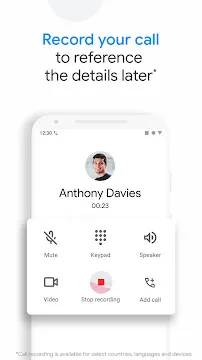
Yes, call recording is available on many devices, though availability depends on your region and mobile carrier.
- Starting a Recording: During an active call, simply tap the “Record” button on the calling screen.
- Legal Transparency: To comply with privacy laws, the app plays an audible announcement to both parties. It says, “This call is now being recorded.”
- Finding Your Files: You can access your recordings within the “Recents” tab. Tap the specific call to play back the audio.
Does the app work with my smartwatch and car?
The Phone by Google app provides a unified experience across all your connected hardware.
- Wear OS Integration: You can answer calls and view transcripts directly on your smartwatch. This is perfect for when your phone is in your pocket or a bag.
- Android Auto Support: When you connect your phone to your car, the app provides a simplified interface. You can use voice commands to dial contacts or listen to voicemails hands-free.
- Wireless Connectivity: If you use a wireless car adapter, the app connects automatically as soon as you start your vehicle.
Is my data safe within the app?
Google prioritizes security by keeping sensitive data on your device. Most advanced features, such as Live Caption and Call Screen transcripts, do not go to the cloud. They process locally on your phone’s hardware. Additionally, your call history and contact list are encrypted during sync. This ensures that your private conversations remain truly private.
Can I use this app on any Android phone?
Not every phone supports it. The app works best on devices running Android 9 or newer. Many Samsung, OnePlus, and Motorola phones work well. Still, some manufacturers block installation. Try downloading it first. If it fails, your device may not be compatible.
Does Phone by Google support Video Calling?
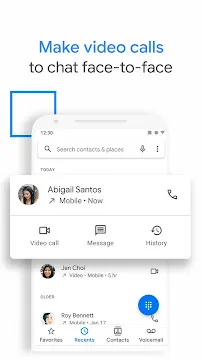
The app integrates directly with Google Meet. During a voice call, you can tap the video icon to switch to a video chat. If the other person also uses Meet, the transition happens instantly.
How do I use the “Hold for Me” feature?
When a business puts you on hold, you can tap Hold for Me. Google Assistant stays on the line while you do other things.
- Silent Monitoring: Your phone stays quiet while the hold music plays.
- Notification: The phone vibrates and sounds an alert once a real person joins the line.
- Live Display: You see a transcript of what is happening while you wait.
What is “Direct My Call” and how does it work?
This feature helps you navigate automated phone menus (IVR). When you call a business with a “Press 1 for Sales” system, the app displays the menu options as buttons on your screen.
- Visual Navigation: You do not have to listen to the entire list of options.
- Speed: You can tap the correct department immediately as the text appears.
- Accuracy: It reduces the chance of pressing the wrong number during a long recording.
Can I change the app’s appearance with Material You?
The app supports Material You dynamic styling on Android 12 and newer versions.
- Color Sync: The dialer colors automatically match your phone’s wallpaper.
- Dark Theme: You can enable Dark Mode to save battery life and reduce eye strain in low light.
- Large Buttons: The interface uses large, clear touch targets to make navigation easier while moving.
How do I view Visual Voicemail?
You do not need to call a specific number to hear messages. The Voicemail tab within the app lists all your messages.
- Play/Pause: You can listen to messages in any order.
- Transcription: The app provides a text version of the voicemail so you can read it in quiet environments.
- Easy Deletion: You can swipe to delete unwanted messages instantly.